
A good checkout asks for as little as possible, shows the full price early, and lets people pay the way they already pay. Most small shops miss at least three of those.
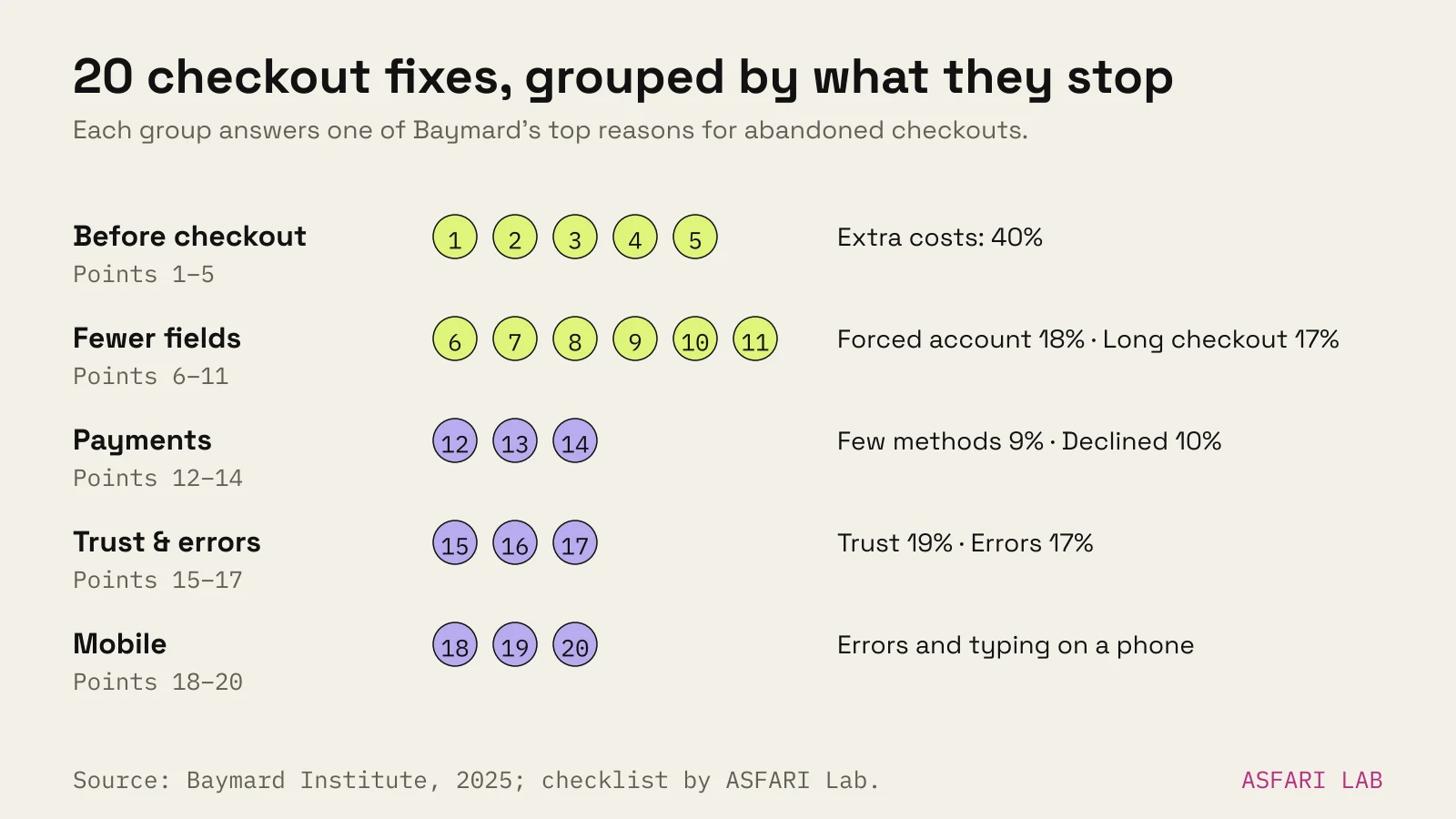
This checklist covers checkout optimization in 20 points. Each one is quick to check and most are cheap to fix, on Shopify or WooCommerce.
Why it matters: Baymard Institute estimates better checkout design could raise conversion by about 35% for a large ecommerce site. Small shops will not see the same number, but the problems are the same.
Work through it on your phone. That is where most checkouts break.
Before checkout: no surprises
Extra costs are the top reason for abandoning a cart in Baymard's research, cited by 40% of those who left. Fix them before the shopper reaches checkout.
1. Show delivery costs on product pages and in the cart. A line under the price is enough: "Delivery from €3.90 to parcel lockers. Free over €60."
2. Show the full total before the payment step. Let people pick a country or postcode in the cart and see the total. In Baymard's survey, 12% left because they could not see or calculate the total up front.
3. Show consumer prices with VAT included. EU shoppers expect the shelf price to be the price. Adding tax at the end feels like a trick.
4. Show a delivery date, not just a speed. "Arrives Thursday" is easier to act on than "2–4 working days". Baymard found 48% of sites still show only the speed.
5. State your returns terms in one line near the button. EU consumers have 14 days to cancel most online purchases. Say it, and say who pays for returns.
Fewer steps, fewer fields
Baymard found the average US checkout shows 23.48 form elements by default. An ideal one can be done with 12–14.
6. Make guest checkout the most obvious option. In Baymard's survey, 18% left because the site wanted them to create an account. Its 2025 benchmark found 62% of sites do not make guest checkout the most prominent option. Offer an account after payment, on the confirmation page.
7. Remove every field you do not use. Company name, title, second address line, separate first and last name. If nobody on your team uses the data, cut the field or hide it behind a link.
8. Add address autocomplete, with manual entry still visible. Lookup saves typing and reduces typos. In Baymard's testing, 69% of people who did not see their address switched to manual fields, so keep those available. Baymard found 55% of sites lack full automatic lookup.
9. Explain why you need a phone number, or make it optional. Couriers and parcel lockers often need one. Say so next to the field. Baymard's 2025 benchmark found 49% of sites do not explain it.
10. Mark both required and optional fields. Baymard found 61% of sites mark only one or the other, which leaves people guessing.
11. Default "billing same as delivery" to yes. One tick box saves a whole second address for most buyers.
Payment methods for Estonia, the Nordics and the EU
In Baymard's survey, 9% left because there were not enough payment methods. Another 10% left after a declined card. A second option on the same screen helps both.
12. Offer cards plus Apple Pay and Google Pay. Wallets skip card entry entirely on phones. Most major card providers support them; check yours in its settings.
13. Add the local method your market expects. - Estonia, Latvia, Lithuania: bank links (Swedbank, SEB, LHV and others), usually through a provider such as Montonio. - Finland: online bank payments are common; providers bundle them with cards. - Sweden, Denmark, Norway: local mobile wallets are widely used, so check your provider supports them. - Netherlands and Belgium: iDEAL and Bancontact, both available through Shopify Payments. - Pay-later (Klarna and similar): useful for higher prices, but check fees first.
14. Check the fee for each method before you switch it on. On Shopify Basic, Klarna through Shopify Payments costs 4.99% + €0.35, against 2% + €0.25 for an EEA standard card. Third-party providers on Shopify add an extra 0.6–2% depending on plan. Our Shopify vs WooCommerce comparison works through the bank-link maths.
Trust and errors
15. Make the shop look real at the moment of payment. In Baymard's survey, 19% left because they did not trust the site with card details. Show your company name, a contact email, payment logos near the pay button and a secure checkout. On Shopify the checkout is hosted for you. On WooCommerce, check that the SSL certificate is valid on every page.
16. Validate fields as people type, and say what is wrong. "Postcode should be 5 digits" beats "Invalid input". Baymard's 2025 benchmark found 94% of sites do not tailor error messages to the actual problem.
17. Keep the basket and details when a payment fails. Never send people back to an empty form. Show what to try next and offer another payment method on the same screen.
Mobile and accessibility
18. Use the right keyboard for each field. Number pad for phone numbers and postcodes, email keyboard for email, autofill turned on for name and address. Small detail, large difference on a phone.
19. Make buttons large, labels visible and the pay button unmistakable. Labels should stay visible when someone types, not vanish like placeholder text. The main button should be the only button that looks like that.
The European Accessibility Act has covered e-commerce services since 28 June 2025. Microenterprises providing services are exempt, but an accessible checkout sells better to everyone. Our guide to the European Accessibility Act for online shops covers who is in scope.
20. Test the whole checkout on a real phone after every change. Buy something with each payment method. Use a discount code. Try a wrong postcode. Do it after every theme, app or plugin update. In Baymard's survey, 17% left because the site had errors or crashed.
Checkout optimization on Shopify
Shopify's checkout is fast and well tested. You cannot redesign it below Shopify Plus. Apps that change the information, shipping and payment steps are Plus-only.
What you can do on any plan:
- Set customer accounts to optional, so guest checkout stays the default.
- Remove optional fields such as company name and second address line in checkout settings.
- Turn on wallets and local payment methods.
- Brand the checkout with your logo, colours and fonts in the checkout editor.
- Show delivery costs and dates earlier, in the theme, product pages and cart.
- Turn on abandoned checkout emails.
Most Shopify checkout problems actually sit before checkout: missing delivery prices, no total in the cart, weak trust signals on the product page.
WooCommerce checkout optimization
WooCommerce gives you full control, which means you can also make it worse.
For stores started after WooCommerce 8.3 (November 2023), the block-based Cart and Checkout is the default. Use it unless an extension forces the old one.
- Remove unused fields. Many plugins add fields you never asked for.
- Add an address autocomplete extension.
- Install your payment providers' official plugins and test each after updates.
- Keep plugins and WordPress updated, then retest checkout.
- Check page speed on mobile. Heavy themes slow the checkout too.
How to use this checklist
Score your shop out of 20. Fix the free ones first: fields, labels, shipping info, guest checkout. Then add payment methods and autocomplete.
If you want the reasons behind each point, read why shoppers abandon carts. If you are pricing a new shop, see how much an online shop costs.
Most of the work happens before the pay button.